Making the Studio Display XDR Work With a PC
The Studio Display XDR is almost everything I wanted, and it has an extremely normal and reasonable connectivity situation.
I remember sitting in front of an Eizo CG series monitor while having a bit of downtime during an internship. A beautiful 24” Full HD 99% AdobeRGB monster of a monitor. I was browsing for a new monitor at the time, looking at reviews and listings, wishing to finally being able to create and edit media with confidence. That’s how I ended up with the first monitor I purchased for myself: An Eizo FlexScan EV2333WH.

23 inches of goodness and immense dark level smear. I used this as my main display in my early years as a freelancer. (Image from Eizo)
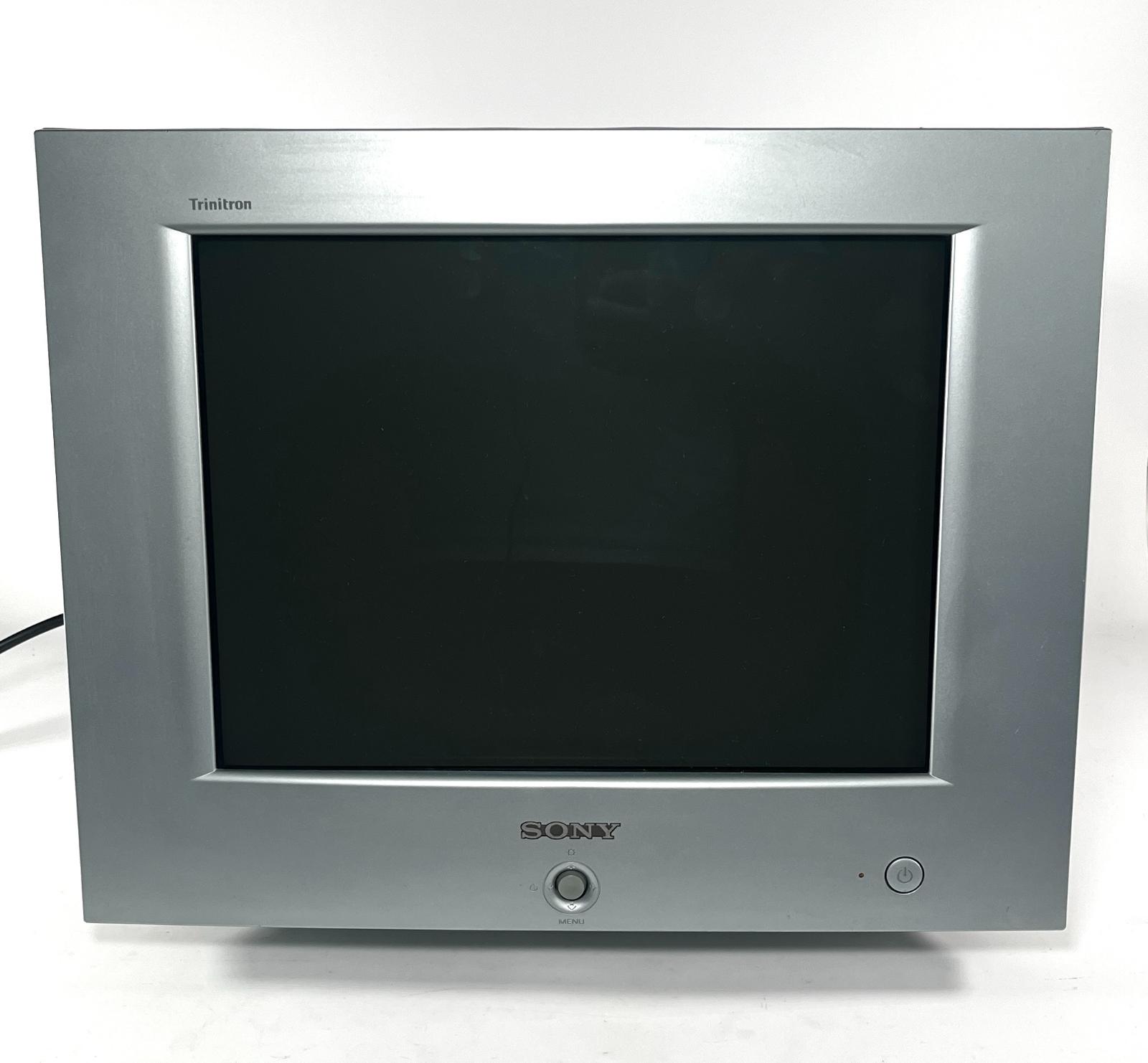
In the food chain of monitors it slots in far below whatever monitor I had in front of me, but I got it for cheap, and it had proper sRGB coverage, so while it wasn’t quite up to par for serious photo or design work, I made it work nonetheless. It was certainly better than the garbage tier TN panel LCD monitors I used before, and still worse (save for resolution) than the Sony HMD-A220 (Source) CRT that we once had for our family computer. But that Eizo is still trucking along somewhere to this day, getting passed around family members.
For many years I’ve been waiting for one display that could just do it all. In 2019, that monitor was the LG 27GL850, and it was quite a compromise. P3 color gamut, 144Hz refresh rate, 2560x1440 resolution at 27”, so generally pretty good, though only HDR’nt (DisplayHDR 400, no local dimming) and no AdobeRGB. And I made it work, too, but the lack of HDR was always a bit of a thorn in my eye.
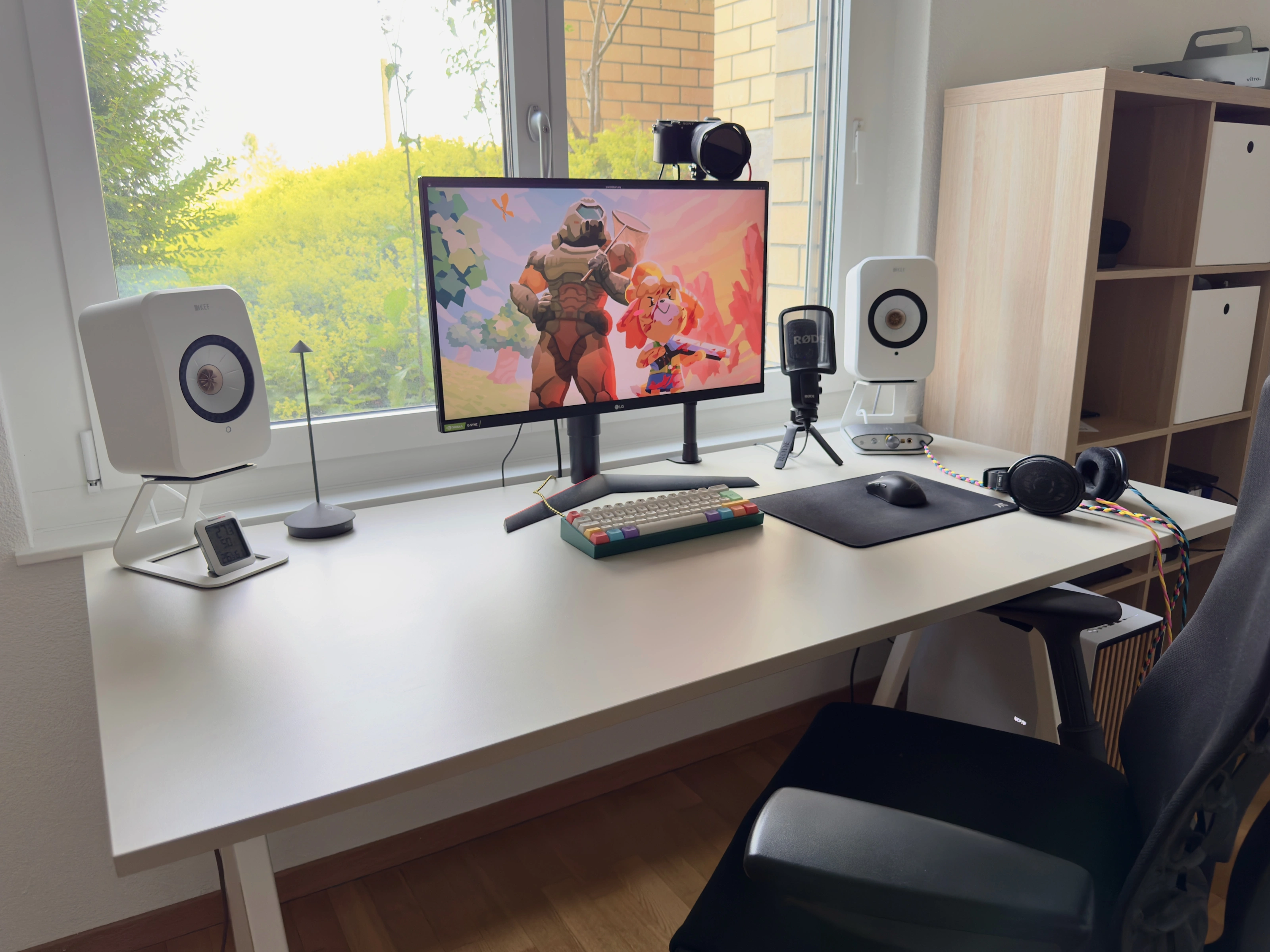
I’ve been patient. In the meantime, the market was flooded with genuinely great WOLED and QD-OLED options that tick most of my boxes. They deliver good HDR (though subpar brightness on full-screen bright scenes), and they come with their own quirks. The one thing they all share, apart from a weird conspiracy against AdobeRGB, is burn-in.
And burn-in is a dealbreaker for me. I’m in desktop mode roughly 90% of the time, for at least 12 hours a day, with largely static UI on screen. On an OLED this is swift and devastating, and I want my monitor to be flawless. So I kept waiting.
My wishlist:
- 27” or 32” diagonal
- High resolution so text isn’t pixelated
- High refresh rate, at least 120Hz
- Easy calibration, and a good set of built-in gamut profiles, especially AdobeRGB a plus
- Wide color gamut
- And in conjunction with that, finally, actually good HDR to rival any other display at home
- KVM functionality a plus
- 16:10 aspect ratio a plus
My only potential compromise would be dark level smearing for lack of a cross-refresh range single overdrive mode.
Apple’s older Pro Display XDR wasn’t it. On some points it got close on paper, but its 60Hz refresh rate and 576 local dimming zones were simply not enough for me. To say nothing of the asinine $1000 stand.
The Studio Display XDR
It’s the first monitor I’ve seen that can actually do all of it. A BOE mini-LED panel with 2304 local dimming zones, 5K at 120Hz, and color and HDR that, going by specs, actually seem to be stand-outs among consumer/prosumer devices. After reading Oscar Molnar’s write-up about running the Studio Display XDR off a PC, I was pretty much convinced it would work for me.
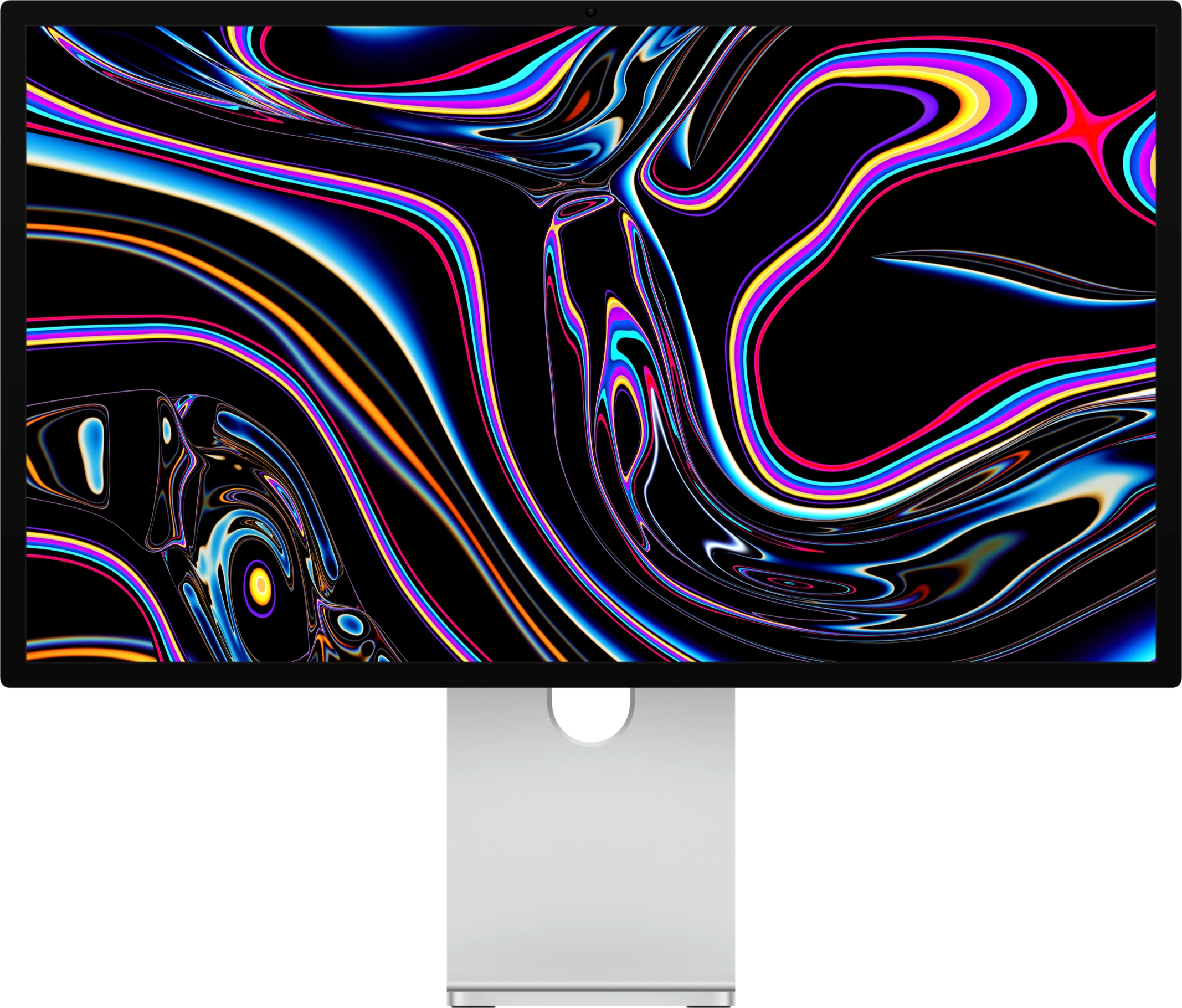
I got the VESA mounted variant with the normal glass, since the Nano-texture glass option is harder to clean, and it slightly reduces contrast according to Rtings. Having seen both in an Apple Store, I prefer the normal glass.
What followed was several weeks of buying things that were supposed to make it work but didn’t. There is a Thunderbolt 5 PCIe card sitting in a box in the basement, and I’m the proud owner of a very-nice-but-now-useless 2m active Thunderbolt 5 cable, among other things.
It Worked. Briefly.
When I last upgraded my PC, I assumed this moment might come, that I’d need to connect high-speed peripherals to it. I specifically went for an ASUS ProArt X870E-CREATOR WiFi motherboard, because it has a DisplayPort In port, and two USB 4 ports with 40Gbps of bandwidth.
When the monitor arrived, I thought that’s all I needed. Plug DisplayPort from the graphics card into the motherboard, and it tunnels the video signal back out through one of the USB4 ports. I plugged it all in, and there it was - 5120×2880 at 120Hz, HDR, the picture I had been waiting years for. Absolutely stunning!
Somehow it held for about four hours, with slight artifacts that looked like the ones coming from a low quality cable. Then I rebooted the machine and the dropouts started. The monitor started bootlooping, showing single glorious frames at a time, built-in peripherals connecting and reconnecting constantly. And I couldn’t find a way to stabilize it through replugging at any connector, waiting, firmware updates, whatever. Disconnecting my Thunderbolt SSD enclosure stretched the dropouts further apart, but it didn’t stop them. The monitor consumes a DisplayPort 1.4a signal with Display Stream Compression to achieve 5K 120Hz, and it definitely fits into the 40Gbps. Still, the ASM4242 USB4 controller was unhappy. Unusable like that unfortunately.
That was in Bazzite, and I couldn’t reproduce any of it for this post. If I hook it up like this now, the screen just remains black. In Windows, 640x480 at 60Hz and 6-bit color was a bit of a bummer. Things were absolutely HUGE on screen.
But at the very least I knew that the monitor could do it, my RTX 3090 could do it, and only the link between them couldn’t.
Unforeseen Consequences
Now that you are in control of both portals, this next test could take a very, VERY, long time.
— GLaDOS, Portal (2007)
Researching the situation I found this video of the RockCheems USB-C switch. Practically the perfect solution tailored to me! Nice! So I happily imported it from the US (definitely happily paying enormous taxes on it, yeah), plugged its funny DP + USB-A to USB-C cable directly into the graphics card and into the monitor, aaaaaand…
It’s stable, but only 4K 120Hz or 5K 60Hz in Bazzite. And the switch itself, interestingly, was able to pass through 5K 120Hz video to a MacBook, but didn’t manage to cleanly switch over the monitor’s peripheral devices and USB peripherals I hooked up (tested with an M4 Max MacBook Pro and an M3 MacBook Air). Plus, if I switched back to the PC, I had to replug the DisplayPort end into a different port on the graphics card. All monitor-related USB devices did connect to the PC properly though.
By now, of course, I recognized that the monitor is weird, and the ASM4242 and its USB4 firmware was the thing holding me back from bliss. If USB4 was the problem, I figured real Thunderbolt had to be the answer. So, to great disappointment, I ordered an ASUS ThunderboltEX 5 PCIe card.
I had known about these cards for years. What I managed to forget is that they must negotiate PCIe lane allocation with the chipset before they do anything, and to do that handshake they need a Thunderbolt header on the motherboard.
X870 and X870E motherboards that have USB4 don’t have that header. The cheaper B850 boards without USB4 generally do.
One Port to Rule Them All
Quick step back, because by this point the absurdity was starting to set in as I was beginning to question my knowledge of computer hardware and my life choices.
When I get asked to propose a mid or high-end desktop PC build, I usually suggest spending a bit more on a motherboard that’ll cover likely future needs. That’s why, in the last couple of years, I recommended X670E and X870 motherboards for AMD AM5 builds, specifically because they offer high-speed external connectors. You won’t have to think about whether you’re going to be able to run this and that peripheral.
But, as I’ve learned, I’m apparently the powerest of users in my circle of friends, family and acquaintances. None of them make use of such high-speed interconnects, aside from internal PCIe, and these oh-so-demanding peripherals never come their way.
Well, I found this and that peripheral to end all peripherals, and when you eventually get such a peripheral, you fall through the USB-C trapdoor. The Studio Display XDR doesn’t do anything too exotic. The video signal comfortably fits into 40Gbps, but of course, it has two 10Gbps USB ports and another Thunderbolt 5 port. So my assumption is that the monitor overwhelms the USB4 controller with both the video signal and full-speed data lines.
So, really, my problem comes down to USB being an absolute mess, surprise surprise! Always a way to get humbled.
The Boring Fix
I wasn’t about to downgrade a perfectly good motherboard to drive a monitor, no matter how fancy. So the Thunderbolt 5 card went back into the box and into the basement and I was back where I started, only poorer and more agitated.
I finally got it to work properly using… a different cable.
As a last resort, I imported this specific cable. Same DP + USB-A to USB-C type of cable as the one bundled with the RockCheems switch, but this one is rated for 8K60. I saw others on AliExpress and Amazon specced to only support DisplayPort 1.2, so I assume that’s what came with the switch. The multiplexer in this one likely properly supports DisplayPort 1.4, and so it actually works like a charm! 5120x2880 at 120Hz, 10-bit color, full HDR, all of the monitor’s built-in peripherals, plus any peripherals I connect to it.
Oh my god. At long last.
So, Is It Any Good?
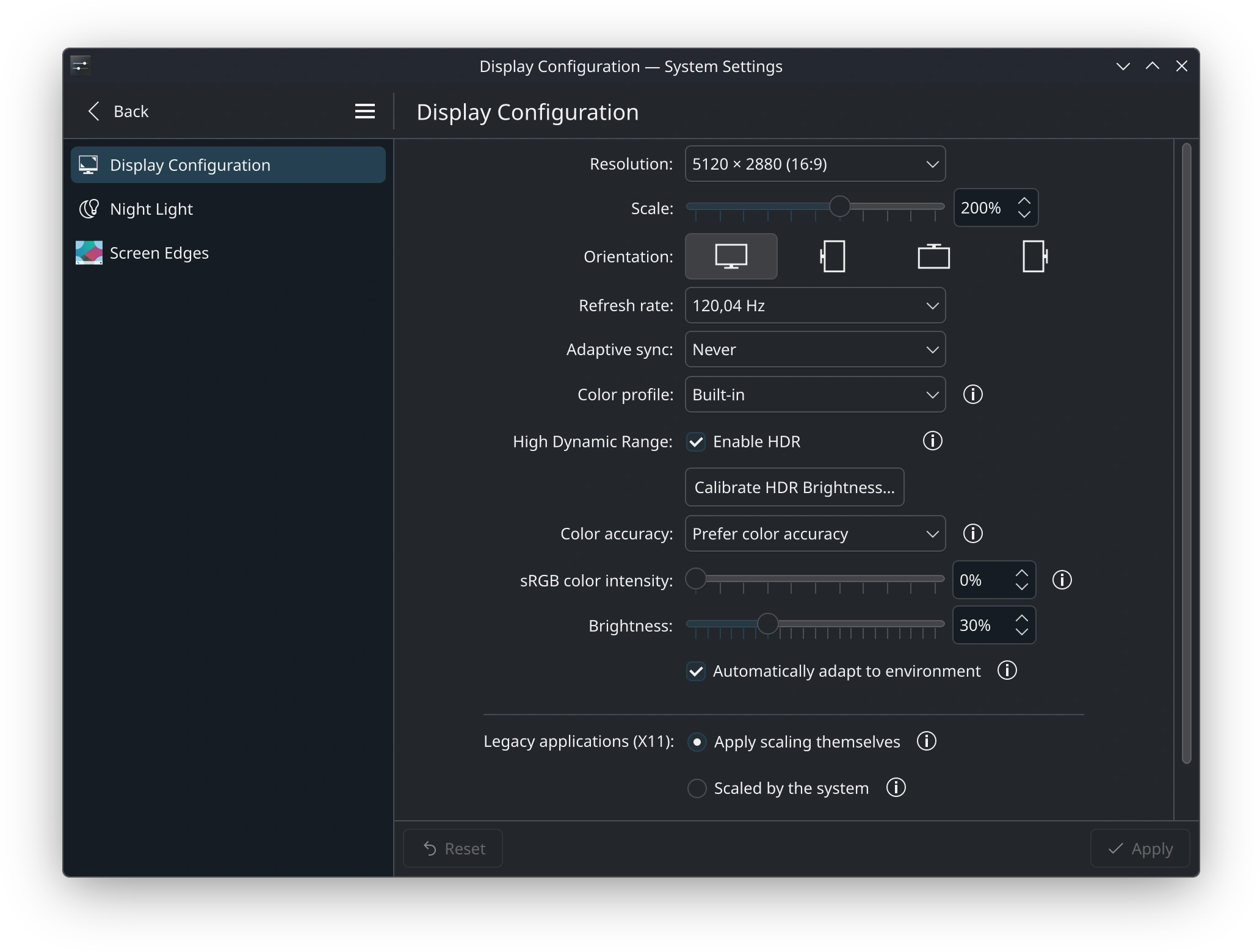
With this sorted out, only the Nvidia driver on Windows was left, and that also turned out easier than expected. While I was experimenting and waiting around for stuff to arrive, Nvidia fixed their Windows driver. Using version 610.88 I’m getting the same 5120x2880 at 120Hz with 10-bit color out of the box, just like in Bazzite.
This brings me to the review section. Mostly going off vibes here.
The Good
Frankly, the Studio Display XDR is almost everything I wished for, and it’s a real upgrade over the LG 27GL850 and similar WQHD HDR’nt high refresh rate monitors. It really does deliver superb text clarity where I wouldn’t care about a higher resolution at this screen size, the difference in smoothness between 120Hz and 144Hz is almost imperceptible to my discerning eyes (8.33ms to 6.94ms), I’m already making good use of the wide range of color profiles baked in, and HDR looks stunning when it works (which is rarely).
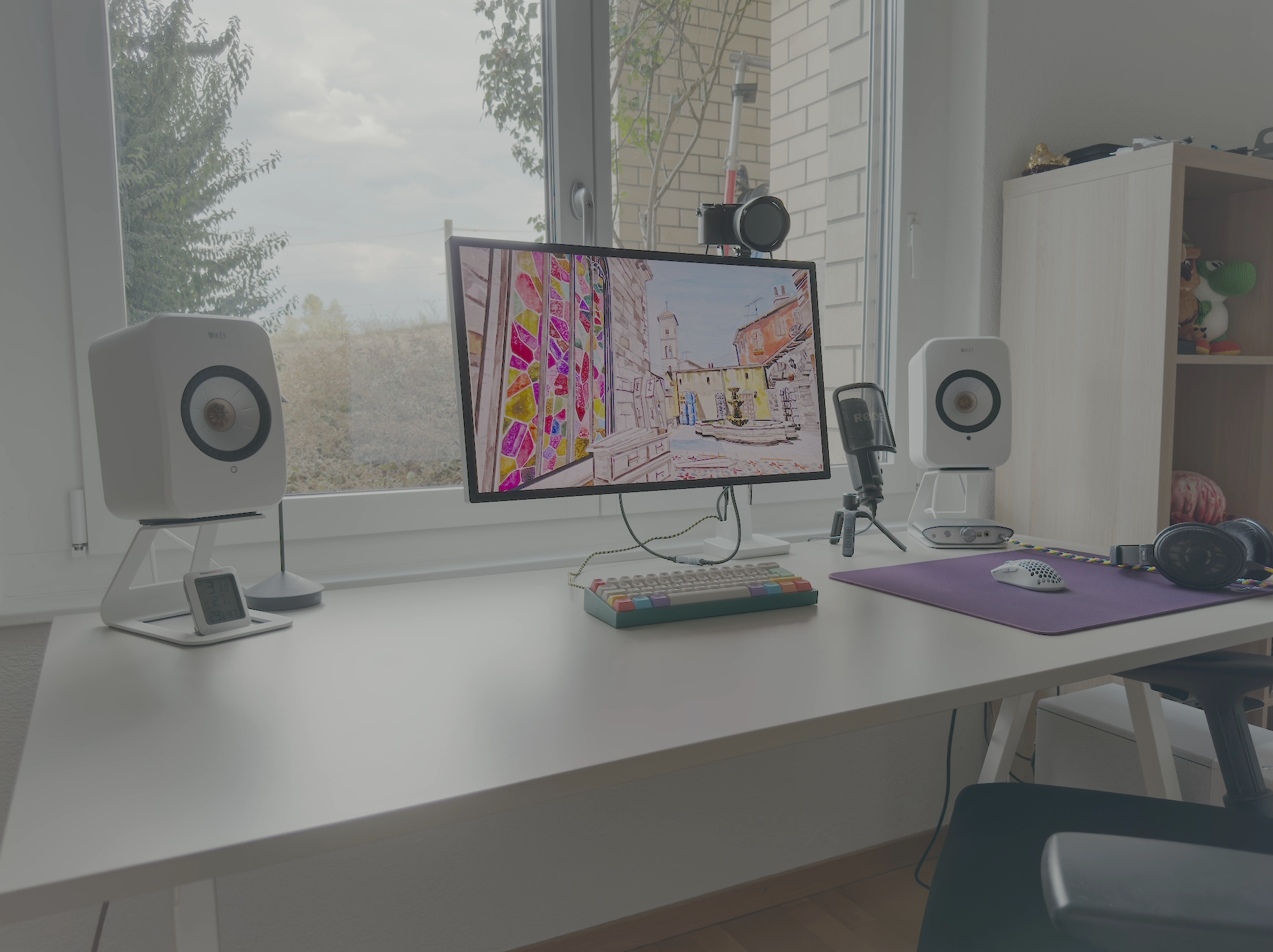
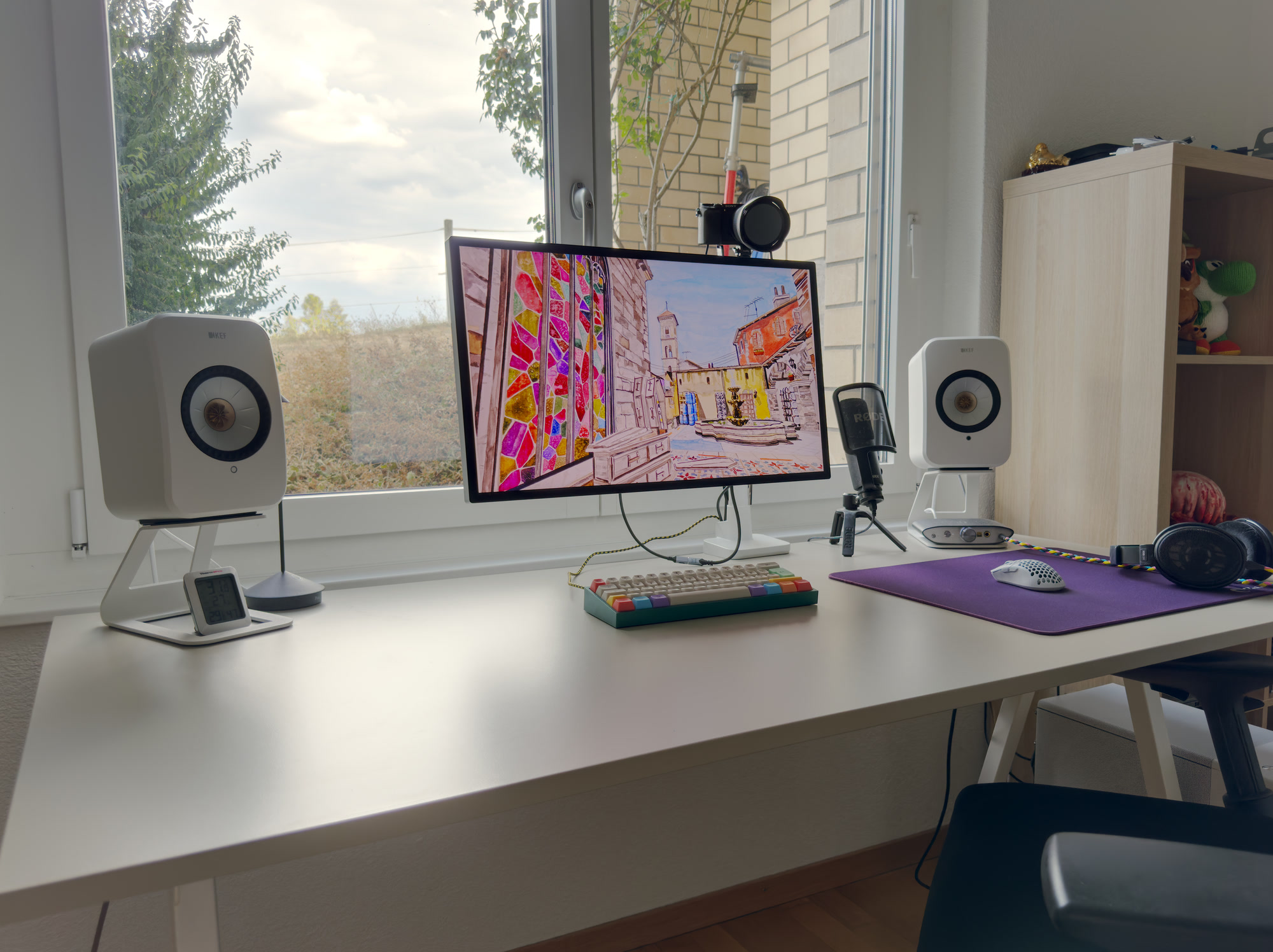
I’m currently not very good at creating HDR images, but I’m learning. See the wide-gamut.com HDR test for properly mastered ones.
The backlight is great, and the internal software implementation of it seems solid. Unfortunately the backlight is not RGB (we do have the tech though), which could’ve unlocked close to 100% Rec.2020 coverage, but I’m not complaining yet. The brightness range is enormous and really does make for dazzling highlights and unusably bright SDR brightness at the top end. You really can flashbang yourself at night with this. Compared to the LG 27GM950, which apparently uses the same panel, but has a different backlight and controller, the Studio Display XDR doesn’t suffer from weird backlight behavior in desktop usage, partly because its display controller is more powerful than the 2026 MacBook Neo’s SoC.
This very naively made SDR video of me dragging the sliders on wide-gamut.com’s HDR test is supposed to demonstrate the difference between SDR and HDR a bit. It’s actually more pronounced in person.
The peripherals on offer, mainly a 4K webcam, microphone and speakers, are very good for the value-adds that they are. Apple-exclusive features like Center Stage and Desk View don’t work on Windows and Linux, but you get an absolutely usable 1920x1080 30FPS or 1760x1328 30FPS picture. In macOS I can get up to 2704x1520 30FPS in OBS. Maybe there’s even a way to get 4K modes out of it. Microphones and speakers are DSP’ed internally, so they sound competent, but of course nowhere near dedicated hardware. Still, I’d use them if I didn’t already have an outrageously overkill webcam, speakers, headphones and a mic.
My sample has very good uniformity, but for the price I’d expect Apple to bin these panels and backlight LEDs similar to high-end Eizo and NEC monitors.
The Meh
As stated previously, the lack of pixel overdrive (or the extremely mild implementation of it) really does produce noticeable smearing in motion. This monitor is not for gamers, I’m just occasionally using it for games. Whether we’ll figure out overdrive at some point is unknown, but I do hope that one day there’s going to be a jailbreak for it and we’ll get good control over the panel.
I’m not too miffed about it, but the bezels around the screen are a bit on the thicc side. Would’ve preferred thinner bezels.
The monitor has active cooling, though I only heard the two fans spin up when it was bootlooping during my experiments. The fans aren’t whiny. I’m using it at a freezing 29°C ambient at the time of writing, and it has been silent in normal use, and even in HDR use. I live in a quiet place, and have specifically tuned my PC to be very quiet. My noise tolerance for such things is pretty low, and the Studio Display XDR is approved.
When I shut down the machine currently connected to the Studio Display XDR, I can only assume the monitor goes into standby, but it doesn’t disable the USB ports. Simpler peripheral devices connected to the monitor (my microphone and headphone DAC/amp) remain powered and lit up. This is annoying at night, and I’m yet to find a solution.
Also would’ve preferred 6K 120Hz at 32”, or the same panel width, but at a 16:10 aspect ratio, but this 16:9 5K 27” panel is just what BOE produces. Can’t argue with that.
The Bad
Apparently it’s asking a lot, but the 2304 dimming zones aren’t nearly enough to avoid producing noticeable haloing. It does get blotchy on the boot screens for example, or with notoriously difficult scenes like starry night skies, or noisy video that’s mostly purely black but not quite, or just displaying subtitles or the mouse cursor on a black background. A mouse cursor on a black background produces a squircly halo about 2.5cm² in size.
This video is brightened to make the haloing more visible (camera optics exaggerate it further). Notice how the dimming zones follow the mouse cursor.
It’s noticeable in these circumstances, but in my daily use I never notice it, because UIs are rarely purely black. I think with at least double the dimming zone count at the same 27” size, we’d be in the realm of “good enough for most use”. The 576 zones at 32” of Apple’s Pro Display XDR looked atrocious by comparison.
There’s no OSD, no non-software control over the monitor, no KVM functionality, and no other amenities that we’ve grown used to with other monitors. I can’t reduce the blues a bit or up the reds. Either I calibrate this display using a colorimeter, or I go screw myself, because Tim Apple knows what’s right for me. On a positive note, the Studio Display XDR supports fully overwriting color profiles, not only applying touch-up profiles.
The price is, of course, too high. If it weren’t for the privilege of using the first monitor to market with this panel and the powerful backlight that is practically flawless in desktop use, I’d have waited this one out as well. I feel a fair price would’ve been a couple hundred above what LG commands for the 27GM950, or what Apple charges for the 60Hz non-XDR Studio Display (which shouldn’t even exist, it has a panel from a decade ago). But, of course, on top of everything else, this has AdobeRGB and DICOM color profiles, and once a monitor has that, it can’t be consumer-priced for some reason.
I’m also a bit saddened that the M3 in my MacBook Air can’t drive the 5K 120Hz. Jury’s out on it maybe running 75Hz? 90Hz?
Also the power cable is still effectively non-removable - repair technicians pull it using this goofy tool. I had to pay attention to get the right regional version of the monitor. I shouldn’t have to think about this.
Verdict
I’m going to spare you further review babble because much more competent people with better hardware already tested it.
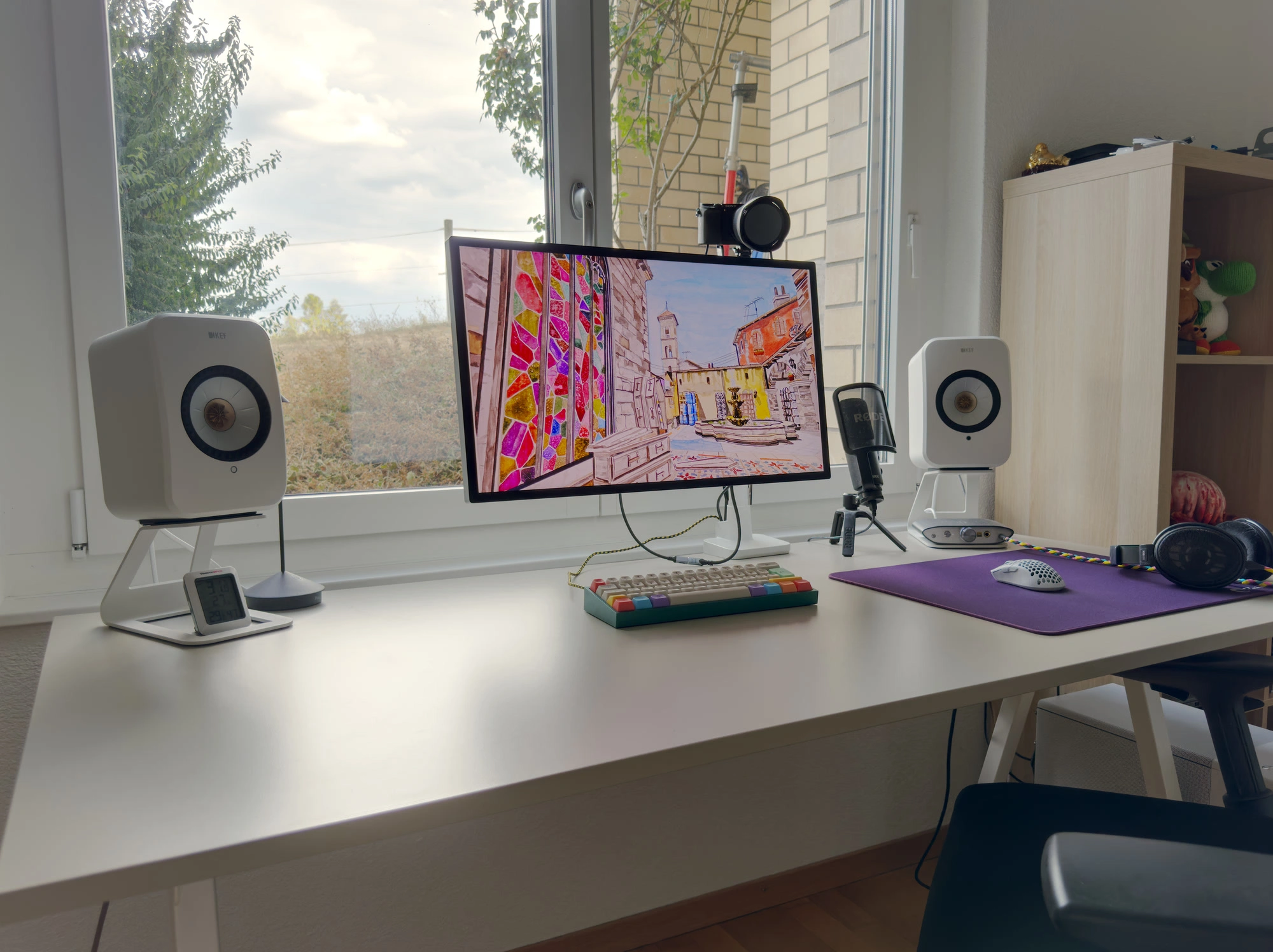
My personal verdict doesn’t surprise me in the least. I had a good vision of what I was getting into before purchasing the monitor, but the connectivity caught me off-guard. If you’re interested in getting this monitor, go straight for the right cable, or a very similar one, or have an actual Intel Maple Ridge, or Barlow Ridge controller (JHL8540, JHL9540, JHL9580) in your machine.
It’s a remarkable product that’s much too expensive. You know if you need it, and if you do, you probably also already know its competitors.
All in all, I’m happy, even though this was way more expensive and more stressful than I wanted. On the one hand, I brought this onto myself. On the other hand, play is an important part of a meaningful life. And having a bit of time to tinker with it, and getting it to work after all was worth it to me.
Especially so in light of the recent LG news. Apparently the 27GL850 was also affected, though I disabled Windows Update driver updates in my Windows install. I’ll be damned if Apple one day does something similar to the Studio Display XDR.
Living With It
For day-to-day use, I ended up with a very sophisticated KVM solution: I swap one cable.
I added a short 30cm fully-featured USB-C extension cable plugged into the Studio Display XDR. The extension I got works properly with Thunderbolt speeds, so I don’t have to keep reaching behind the monitor or wear out its input port.
All my regular USB devices now live on a USB hub connected to the monitor, so they follow along to whichever machine is plugged in. Except for the webcam’s capture card, because it demands too much bandwidth, and it freezes USB device enumeration. A proper Thunderbolt KVM would solve that too, but it’s actively cooled and I don’t want another fan on my desk badly enough to spend that kind of money.
So after all of this, to switch computers I unplug one USB-C cable and plug in another.
I can live with that.
More?